When you install a Python CLI tool from a Git repository using uv tool install --from git+URL, the uv tool list --outdated command checks PyPI by the package’s internal name instead of the Git source. If a different package with the same name exists on PyPI, uv reports a false update. The fix is to parse --show-version-specifiers output to identify Git sources, then check GitHub Releases directly.
I was writing a script to update Homebrew, pnpm global packages, and uv global packages all at once. Homebrew: fine. pnpm: fine. uv: flagged a tool for a major version update that didn’t exist. Here’s what happened, why it happens, and how to handle it correctly.
How I Discovered the Problem
I was building devflow-update, a fish shell script that checks for outdated packages across Homebrew, pnpm, and uv in a single pass. Homebrew and pnpm both have built-in subcommands for this:
brew outdated
pnpm outdated -g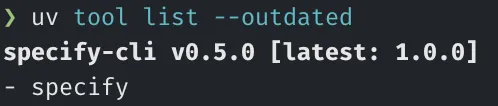
For uv, the equivalent is uv tool list --outdated. My script parsed its output, compared versions, and displayed the results. Everything worked until I ran it and saw this:
specify-cli v0.5.0 [latest: 1.0.0]A major version bump, from 0.5.0 to 1.0.0. For specify-cli, which is GitHub’s spec-kit CLI tool. I went to check the release notes before upgrading, and found no 1.0.0 release on the repository’s Release page. The latest was somewhere in the 0.x range.
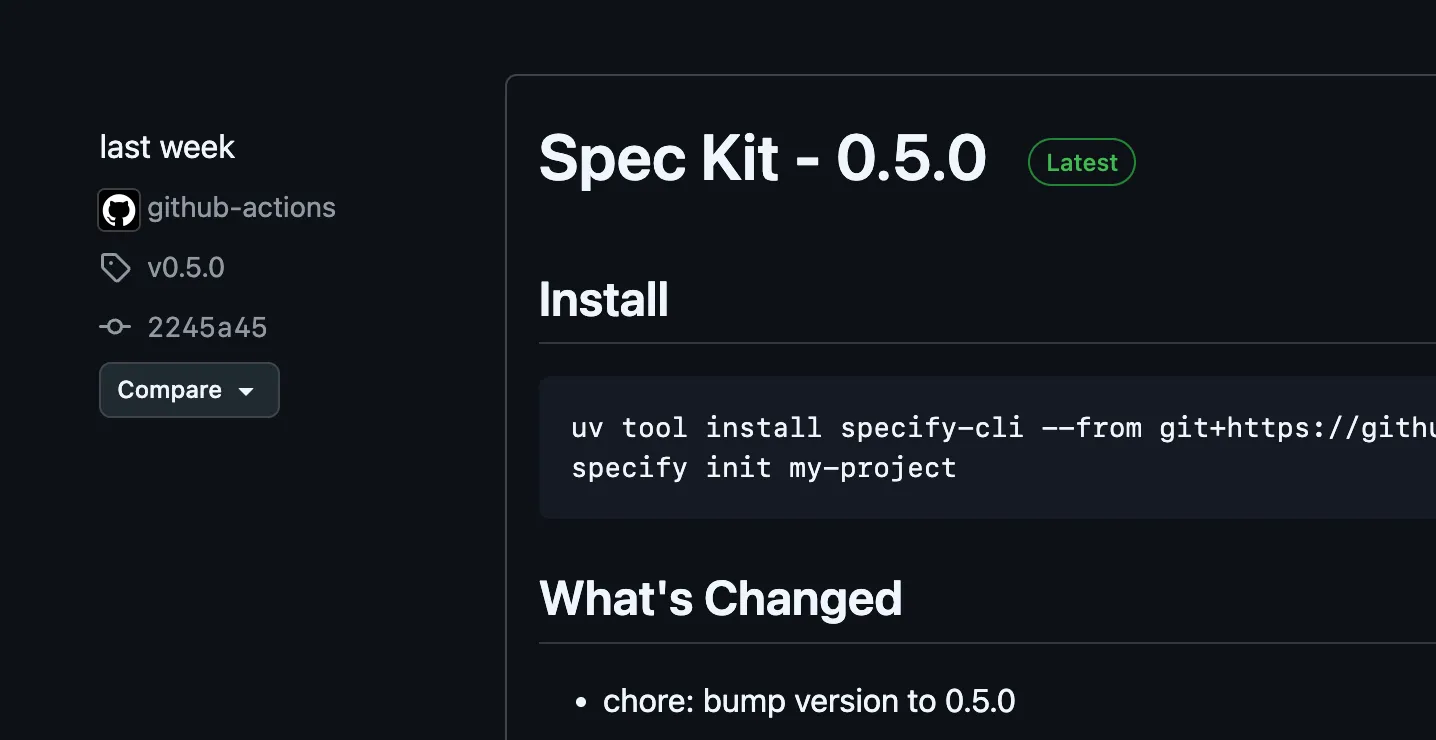
That’s when I noticed this package was installed via Git:
uv tool install specify-cli --from git+https://github.com/github/spec-kit.gitI searched PyPI for specify-cli and found a completely different, unrelated package at version 1.0.0. A different author, a different project, the same name. A name collision in the wild.
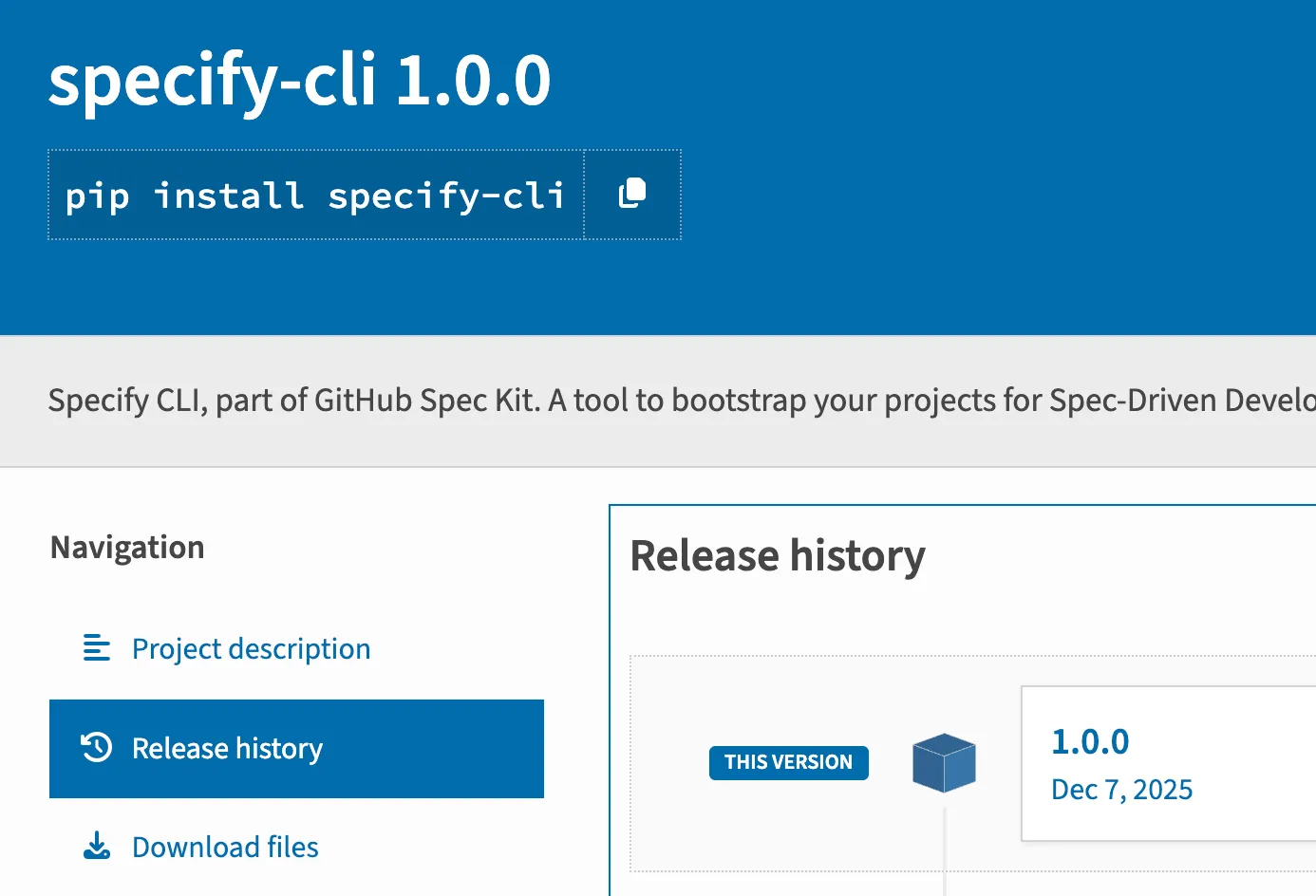
The default behavior of uv tool list --outdated is to look up the local package name against the PyPI index. Since 1.0.0 is semantically greater than 0.5.0, uv produced a false positive. If I had blindly run uv tool upgrade --all, it would have tried to replace my working spec-kit install with an entirely different PyPI package.
Why uv tool list —outdated Gets It Wrong
The Default Behavior: PyPI Lookup by Package Name
When you run uv tool list --outdated, uv iterates through your installed tools, extracts each package’s internal name (the name in its pyproject.toml or setup.py), and queries the PyPI JSON API for the latest version of that name. It then compares the PyPI version against your installed version using semver.
This works perfectly for tools installed directly from PyPI. httpie on your machine maps to httpie on PyPI. The versions match. No ambiguity. It’s a clean one-to-one lookup.
What Happens with Git-Installed Tools
When you install from a Git repository, the package name used for lookup is still the internal name defined in the repository’s packaging metadata. It is not the Git URL. Two completely unrelated packages can share the same internal name.
In my case:
- My tool:
specify-cliv0.5.0, installed fromgit+https://github.com/github/spec-kit.git - PyPI package:
specify-cliv1.0.0, a different project by a different author
uv sees “specify-cli” and asks PyPI “what’s the latest version of specify-cli?” PyPI answers “1.0.0.” uv compares 1.0.0 > 0.5.0 and reports an update available. But the update doesn’t exist in the source repository. It’s a phantom.
Two Failure Modes: False Positive vs. Not Found
This problem manifests in two ways depending on whether a colliding package exists on PyPI:
False positive (what I experienced): A different package with the same name exists on PyPI at a higher version. uv tool list --outdated reports an upgrade that doesn’t exist in your Git source. Running uv tool upgrade could replace your tool with the wrong package entirely.
“Not found” error: No package with that name exists on PyPI at all. This is documented in GitHub issue #8926, where uv pip list --outdated breaks when a git-installed package has no PyPI counterpart. The command either errors out or silently skips the package.
Both modes are wrong. The tool was installed from Git, so the version check should happen against the Git source, not PyPI. As of uv 0.6.x, there isn’t a built-in flag to change this behavior. You have to work around it yourself.
Detecting the Collision: —show-version-specifiers
The key to a reliable check is identifying the installation source before running any version comparison. uv provides a flag for this:
uv tool list --show-version-specifiers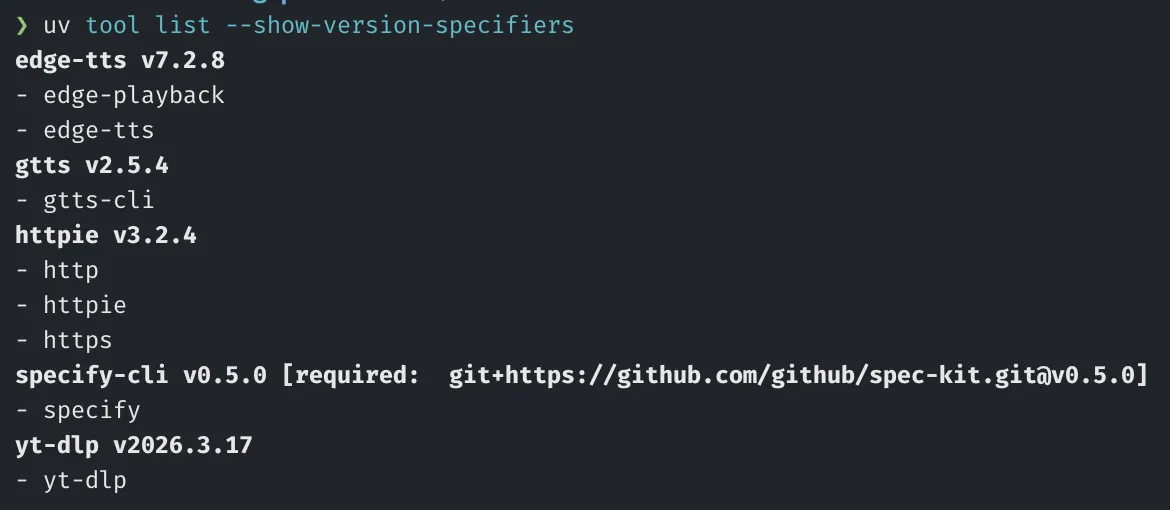
This outputs something like:
httpie v4.0.0 [required: httpie>=4.0.0]
specify-cli v0.5.0 [required: git+https://github.com/github/spec-kit.git]
ruff v0.11.0 [required: ruff>=0.11.0]
Tools installed from PyPI show a standard version specifier (httpie>=4.0.0). Tools installed from Git show the full Git URL prefixed with git+ (git+https://github.com/github/spec-kit.git). This distinction lets you split your update strategy.
The parsing logic is straightforward. In fish shell:
for line in (uv tool list --show-version-specifiers 2>/dev/null)
  # Match git-sourced tools
  set -l git_match (string match -r -- '^(\S+)\s+v(\S+)\s+\[required:\s+git\+(.+)\]$' $line)
  if test (count $git_match) -ge 4
    # $git_match[2] = name, $git_match[3] = version, $git_match[4] = git URL
    # Use GitHub Releases API for version check
    continue
  end
  # Match PyPI-sourced tools
  set -l pypi_match (string match -r -- '^(\S+)\s+v(\S+)$' $line)
  if test (count $pypi_match) -ge 3
    # $pypi_match[2] = name, $pypi_match[3] = version
    # Use uv tool list --outdated for version check
  end
end
With this split, PyPI tools go through uv tool list --outdated as normal, and Git tools get a separate code path that queries the source repository directly.
The Correct Way to Check Git-Installed Tools
Once you’ve identified a Git-sourced tool, checking for updates requires three steps. The approach below assumes GitHub-hosted repositories, which covers the vast majority of Git-installed Python tools.
Step 1: Parse the Repository URL
Extract the GitHub owner and repository name from the Git URL recorded in --show-version-specifiers. The URL format is typically https://github.com/<owner>/<repo>.git, so stripping the prefix and suffix gives you the components:
set -l repo_match (string match -r -- 'https://github.com/([^/]+)/([^/]+?)(?:\.git)?$' $url)
# $repo_match[2] = owner, $repo_match[3] = repo
This works for GitHub-hosted tools. For GitLab or self-hosted Git servers, you’d adjust the regex and API endpoint accordingly.
Step 2: Query the GitHub Releases API
With owner and repo in hand, fetch the latest release:
set -l release (curl -s "https://api.github.com/repos/$owner/$repo/releases/latest")
set -l latest_tag (echo "$release" | jq -r '.tag_name // empty')
One caveat: the GitHub API limits anonymous requests to 60 per hour. If you have many Git-installed tools or run the check frequently, you’ll hit that limit. A Personal Access Token (PAT) bumps the limit to 5,000 per hour:
set -l release (curl -s -H "Authorization: token $GITHUB_TOKEN" \
  "https://api.github.com/repos/$owner/$repo/releases/latest")
Step 3: Compare Versions
Strip any v prefix from both the installed version and the latest tag, then compare:
set -l current_ver (string replace -r '^v' '' $installed_version)
set -l latest_ver (string replace -r '^v' '' $latest_tag)

if test "$current_ver" != "$latest_ver"
  echo "$name has update: $current_ver -> $latest_tag"
end
Updating Git-Installed Tools
The same PyPI-lookup issue affects the update process. uv tool upgrade --all upgrades PyPI-sourced tools but does not correctly handle Git-sourced ones. It may fail silently or attempt to pull from PyPI instead of the Git source, as documented in GitHub issue #18522.
The correct approach is to reinstall from the Git source at the new tag using --force:
uv tool install --from git+https://github.com/<owner>/<repo>.git@<tag> --force <package-name>For example:
uv tool install --from git+https://github.com/github/spec-kit.git@v0.5.0 --force specify-cliThe --force flag is required because the tool is already installed. Without it, uv skips the installation, assuming nothing needs to change. The @<tag> suffix pins the installation to a specific release instead of the default branch HEAD, which is what you want for reproducible, version-controlled updates.
How pipx Handles This
For comparison, pipx tracks the original installation source for each tool. When you run pipx upgrade, pipx checks the source recorded at install time. If you installed from Git, pipx pulls from Git. If from PyPI, pipx checks PyPI. You don’t need a workaround. It just works.
This is the behavior uv should have, and GitHub issue #8244 tracks the broader “uv as pipx replacement” feature request, including better Git source handling.
Where uv wins over pipx: speed. uv is written in Rust and is 10-100x faster than pipx for most operations. The dependency resolution is better, the caching is more aggressive, and the tool isolation is cleaner. For PyPI-sourced tools, uv is strictly superior.
Where pipx still has an edge: source tracking for Git-installed tools. pipx remembers where you installed from and checks that source. uv forgets the source after installation and falls back to PyPI for version checks. Until uv adds proper source tracking, the workaround in this article is necessary.
| Feature | uv | pipx |
|---|---|---|
| PyPI install speed | Fast (Rust) | Slow (Python/pip) |
| Git source tracking | No (falls back to PyPI) | Yes |
--outdated for Git tools | False positives | Correct |
| Dependency resolution | Superior | Basic |
upgrade --all for Git tools | Broken | Works |
The practical takeaway: use uv as your default tool manager. It’s faster and better for 95% of cases. For the rare Git-installed tool, apply the split-strategy workaround described above.
Conclusion
uv tool list --outdated is unreliable for tools installed from Git repositories because it resolves package names against PyPI instead of the original source. When a name collision exists (a different PyPI package with the same name), you get false positives. When no PyPI package exists, you get errors.
The fix is straightforward: parse --show-version-specifiers to identify Git-sourced tools, filter them out of the --outdated output, and check the GitHub Releases API directly. For updates, use uv tool install --from git+URL@tag --force instead of uv tool upgrade --all.
This split strategy — PyPI tools through uv’s built-in mechanism and Git tools through the GitHub API — gives you accurate version checks and correct updates across both sources.
Complete Update Script
The full implementation lives in my Agentic-TUI repository:
- Check script: devflow-update.fish — classifies tools, checks outdated via appropriate channels
- Upgrade script: devflow-upgrade.fish — executes upgrades using the split strategy
The upgrade script’s uv section does four things:
- Classify tools: Parse
--show-version-specifiersto split into Git-sourced and PyPI-sourced - Filter PyPI outdated: Run
--outdated, then exclude any Git-sourced tool names from the results - Check Git outdated: For each Git tool, extract the GitHub URL, call the Releases API, compare tags
- Execute upgrades: Bulk
uv tool upgrade --allfor PyPI tools; individualuv tool install --from git+URL@tag --forcefor Git tools
Frequently Asked Questions
Why does uv tool list —outdated show wrong versions for git tools?
uv resolves the package name (from the repository’s pyproject.toml or setup.py) against the PyPI index. It does not track the original Git source URL for version checking. If a different package with the same name exists on PyPI at a higher version, uv reports a false update.
How do I update a uv tool installed from a GitHub repository?
Use the --force reinstall approach with the specific tag: uv tool install --from git+https://github.com/owner/repo.git@v1.2.3 --force package-name. The @v1.2.3 suffix pins the version, and --force overwrites the existing installation.
Does uv plan to fix this name collision issue?
There is no confirmed timeline. Several related issues are open on the uv GitHub repository (#8926, #18522, #8244), but none have been resolved as of April 2026. The workaround described in this article is the recommended approach in the meantime.
Should I use uv or pipx for global CLI tools?
For PyPI-sourced tools, uv is strictly better: faster, better dependency resolution, cleaner isolation. For Git-sourced tools, pipx has better source tracking. If you install most tools from PyPI, use uv and apply the split-strategy workaround for any Git-sourced tools.